Developer Guide
- Acknowledgements
- Setting up, getting started
- Design
- Implementation
- Documentation, logging, testing, configuration, dev-ops
- Appendix: Requirements
- Appendix: Instructions for manual testing
Acknowledgements
- Libraries used: JavaFX, Jackson, JUnit5
- This project is based on the AddressBook-Level3 (AB3) project created by the SE-EDU initiative, as part of the se-education.org initiative.
- The undo/redo feature was implemented and documented with reference to the proposed implementation found in AB3’s developer guide.
Setting up, getting started
Refer to the guide Setting up and getting started.
Design
 Tip: The
 .puml files used to create diagrams in this document can be found in the diagrams folder. Refer to the PlantUML Tutorial at se-edu/guides to learn how to create and edit diagrams.
Architecture
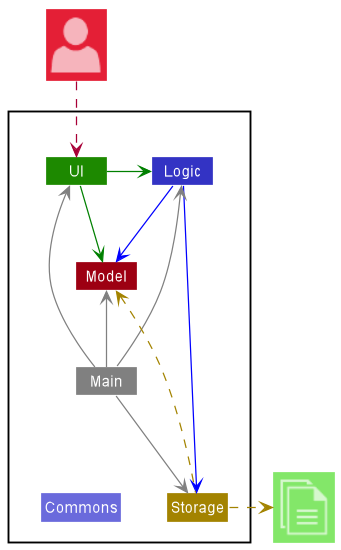
The Architecture Diagram given above explains the high-level design of the App.
Given below is a quick overview of main components and how they interact with each other.
Main components of the architecture
Main has two classes called Main and MainApp. It is responsible for,
- At app launch: Initializes the components in the correct sequence, and connects them up with each other.
- At shut down: Shuts down the components and invokes cleanup methods where necessary.
Commons represents a collection of classes used by multiple other components.
The rest of the App consists of four components.
-
UI: The UI of the App. -
Logic: The command executor. -
Model: Holds the data of the App in memory. -
Storage: Reads data from, and writes data to, the hard disk.
How the architecture components interact with each other
The Sequence Diagram below shows how the components interact with each other for the scenario where the user issues the command delete 1.
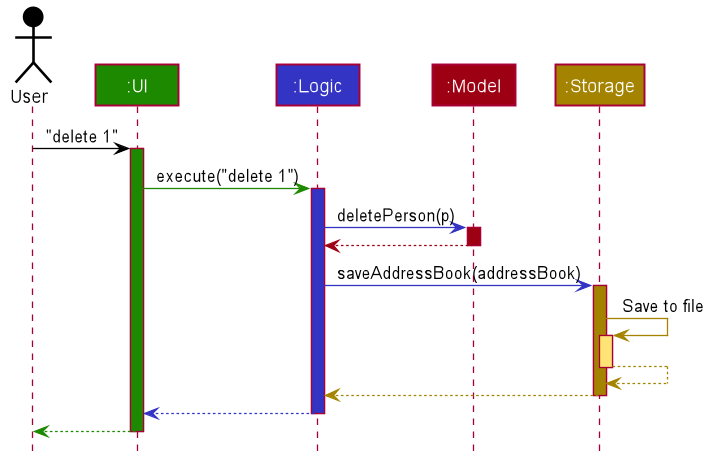
Each of the four main components (also shown in the diagram above),
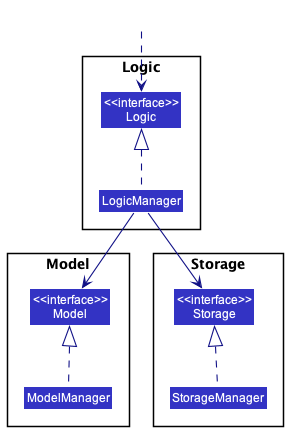
- defines its API in an
interfacewith the same name as the Component. - implements its functionality using a concrete
{Component Name}Managerclass (which follows the corresponding APIinterfacementioned in the previous point.
For example, the Logic component defines its API in the Logic.java interface and implements its functionality using the LogicManager.java class which follows the Logic interface. Other components interact with a given component through its interface rather than the concrete class (reason: to prevent outside component’s being coupled to the implementation of a component), as illustrated in the (partial) class diagram below.
The sections below give more details of each component.
UI component
The API of this component is specified in Ui.java
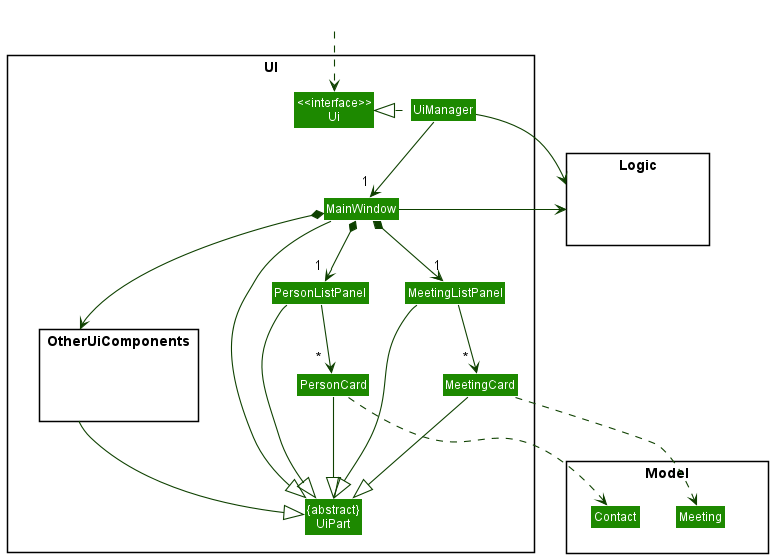
The UI consists of a MainWindow that is made up of parts, namely MeetingListPanel, PersonListPanel and other UI parts that have been left out of the diagram. The other parts include StatusBarFooter, ResultDisplay, CommandBox, HelpWindow and MeetingClashWindow.
All these, including the MainWindow, inherit from the abstract UiPart class which captures the commonalities between classes that represent parts of the visible GUI.
The UI component uses the JavaFx UI framework. The layout of these UI parts are defined in matching .fxml files that are in the src/main/resources/view folder. For example, the layout of the MainWindow is specified in MainWindow.fxml
The UI component,
- executes user commands using the
Logiccomponent. - listens for changes to
Modeldata so that the UI can be updated with the modified data. - keeps a reference to the
Logiccomponent, because theUIrelies on theLogicto execute commands. - depends on some classes in the
Modelcomponent, as it displaysContactobjects andMeetingobjects residing in theModel.
Logic component
API : Logic.java
Here’s a (partial) class diagram of the Logic component:
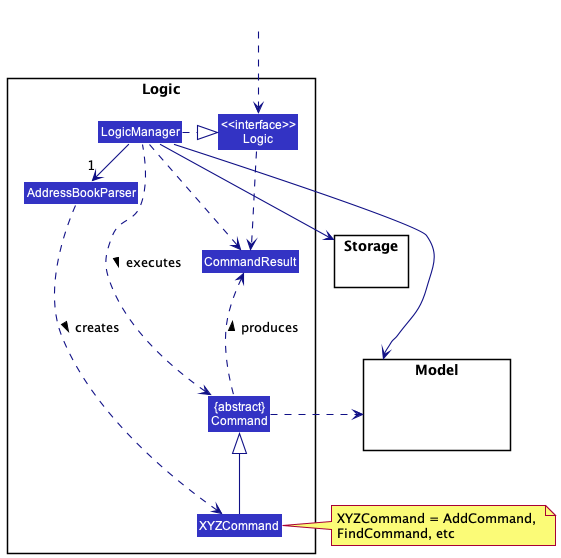
How the Logic component works:
- When
Logicis called upon to execute a command, it uses theAddressBookParserclass to parse the user command. - This results in a
Commandobject (more precisely, an object of one of its subclasses e.g.,AddCommand) which is executed by theLogicManager. - The command can communicate with the
Modelwhen it is executed (e.g. to add a person). - The result of the command execution is encapsulated as a
CommandResultobject which is returned back fromLogic.
The Sequence Diagram below illustrates the interactions within the Logic component for the execute("deletec 1") API call.
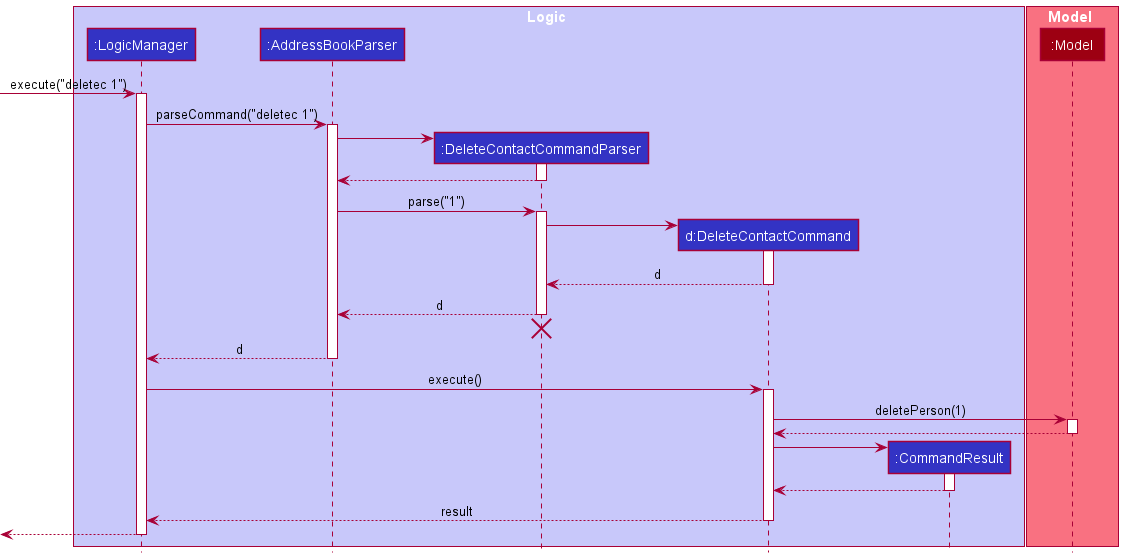
 Note: The lifeline for
 DeleteContactCommandParser should end at the destroy marker (X) but due to a limitation of PlantUML, the lifeline reaches the end of diagram.
Here are the other classes in Logic (omitted from the class diagram above) that are used for parsing a user command:
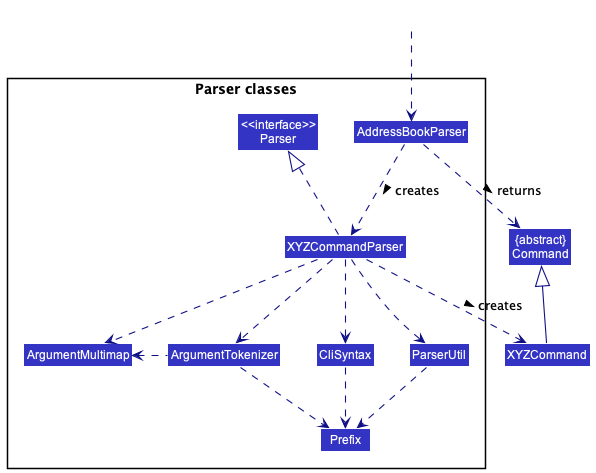
How the parsing works:
- When called upon to parse a user command, the
AddressBookParserclass creates anXYZCommandParser(XYZis a placeholder for the specific command name e.g.,AddCommandParser) which uses the other classes shown above to parse the user command and create aXYZCommandobject (e.g.,AddCommand) which theAddressBookParserreturns back as aCommandobject. - All
XYZCommandParserclasses (e.g.,AddCommandParser,DeleteCommandParser, …) inherit from theParserinterface so that they can be treated similarly where possible e.g, during testing.
Model component
API : Model.java
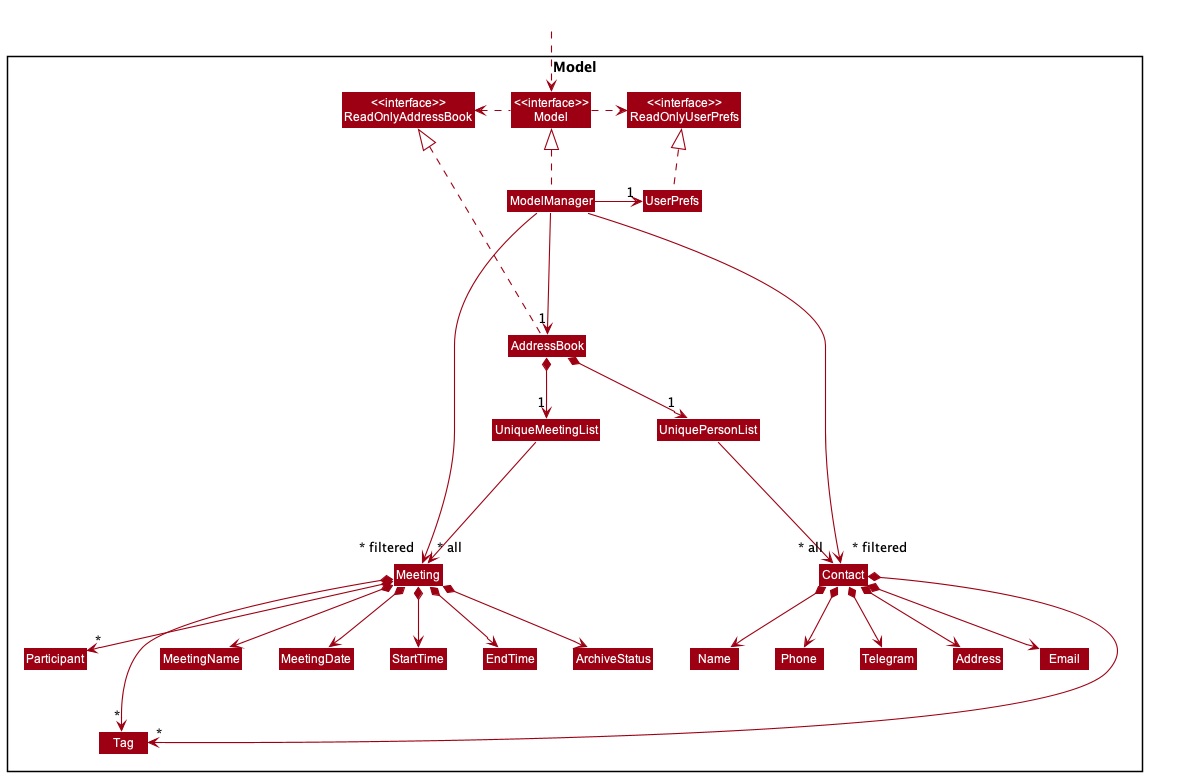
The Model component,
- stores the address book data i.e., all
Contactobjects and allMeetingobjects (which are contained in aUniquePersonListobject and aUniqueMeetingListrespectively). - stores the currently ‘selected’
Contactobjects (e.g., results of a search query) as a separate filtered list which is exposed to outsiders as an unmodifiableObservableList<Contact>that can be ‘observed’ e.g. the UI can be bound to this list so that the UI automatically updates when the data in the list change. - stores the currently ‘selected’
Meetingobjects (e.g., results of a search query) as a separate filtered list which is exposed to outsiders as an unmodifiableObservableList<Meeting>that can be ‘observed’ e.g. the UI can be bound to this list so that the UI automatically updates when the data in the list change. - stores a
UserPrefobject that represents the user’s preferences. This is exposed to the outside as aReadOnlyUserPrefobjects. - does not depend on any of the other three components (as the
Modelrepresents data entities of the domain, they should make sense on their own without depending on other components)
Note: An alternative (arguably, a more OOP) model is given below. It has two Tag lists in the AddressBook, which Person and Meeting references. This allows AddressBook to only require one Tag object per unique tag, instead of each Person and each Meeting needing their own Tag objects.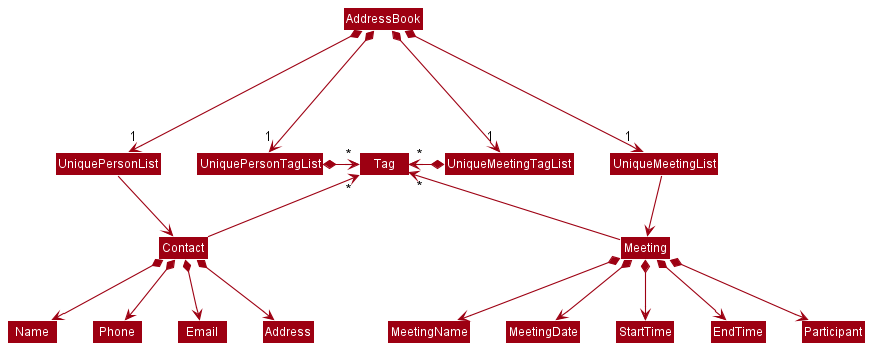
Storage component
API : Storage.java
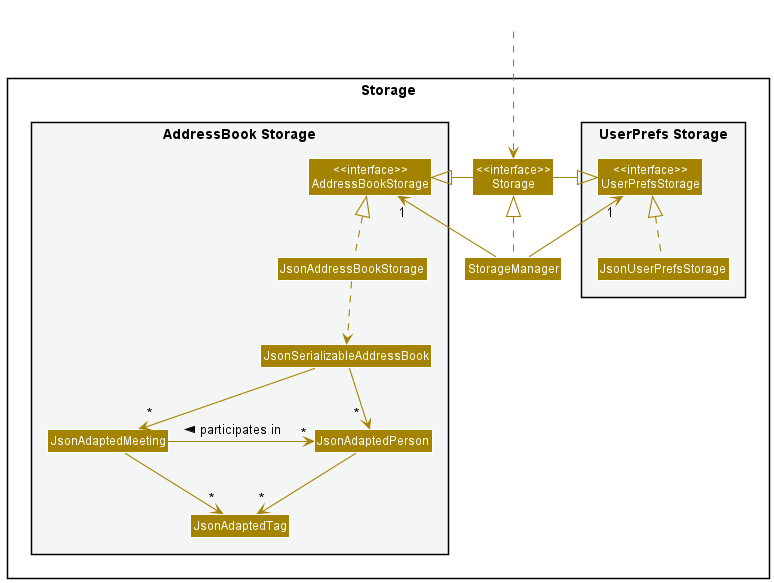
The Storage component,
- can save both address book data and user preference data in json format, and read them back into corresponding objects.
- inherits from both
AddressBookStorageandUserPrefStorage, which means it can be treated as either one (if only the functionality of only one is needed). - depends on some classes in the
Modelcomponent (because theStoragecomponent’s job is to save/retrieve objects that belong to theModel)
Common classes
Classes used by multiple components are in the seedu.addressbook.commons package.
Implementation
This section describes some noteworthy details on how certain features are implemented.
Add Meeting feature
This section describes how a Meeting object is added to the list of meetings using the addm command.
Implementation
A Meeting object in AddresSoc consists of MeetingName,MeetingDate,StartTime,EndTime,
as well as the optional Tags and Participants fields. Upon the addm command being called with the
relevant fields provided, a Meeting will be added to the UniqueMeetingList.
Given below is an example usage scenario and how the addm command behaves at each step.
- The user inputs the command
addm mn/2103 Meeting d/25/03/2022 st/1600 et/1800 t/Important pt/2 pt/3 - The user input is passed into
AddressBookParserwhich matches theaddmcommand word and passes the arguments toAddMeetingCommandParser. -
AddMeetingCommandParserparses the arguments according to the prefixes and constructs aAddMeetingCommandobject. - The
AddMeetingCommandobject is returned toLogicManagerto be executed. During execution, theMeetingobject with the given fields is constructed and added to theUniqueMeetingList.
Sequence Diagram
The sequence diagram below shows the execution of the above example:
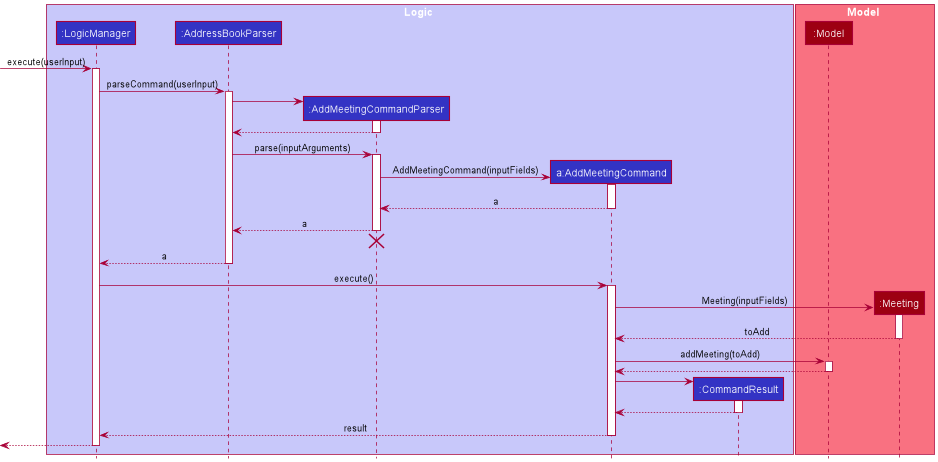
Note: The lifeline for AddMeetingCommandParser should end at the destroy marker (X) but due to a limitation of PlantUML, the lifeline reaches the end of diagram.
Note:The arguments for methods and constructors have been shortened for clarity in the diagram.
Activity Diagram
The activity diagram below shows the execution of the above example:
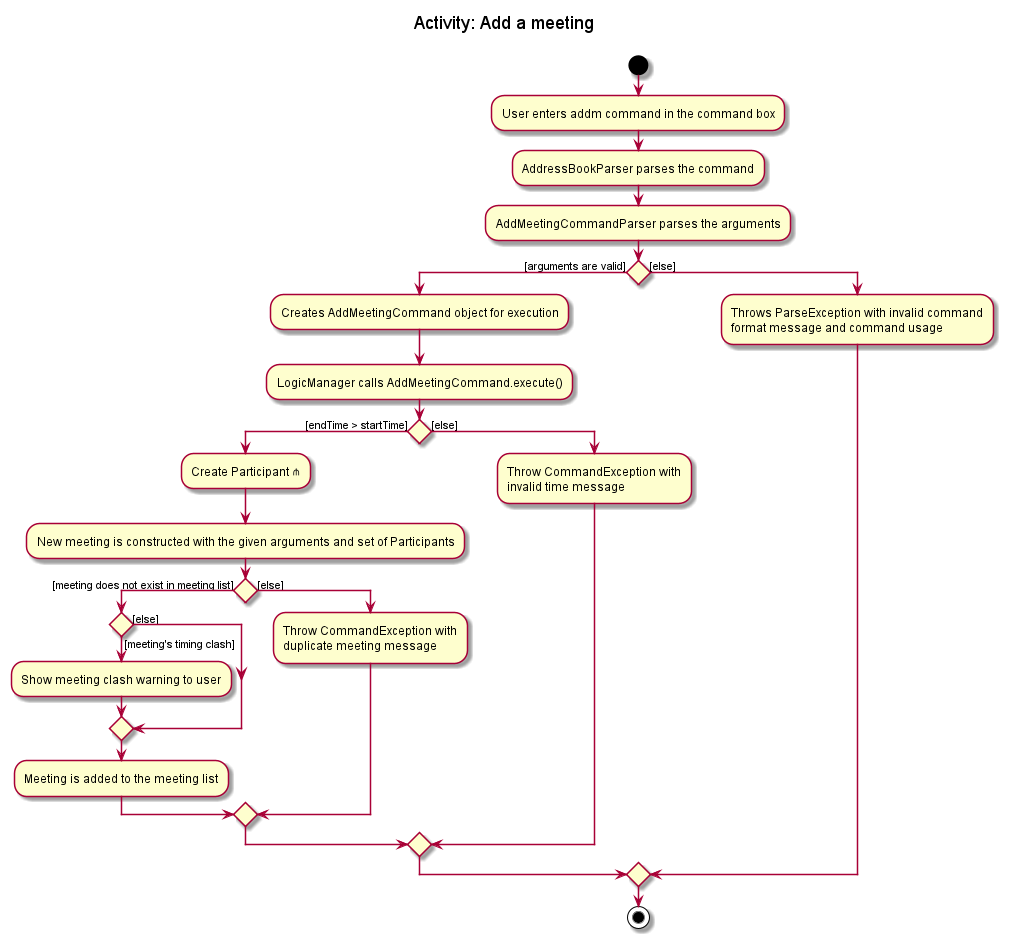
Note: The Create Participant ⋔ references the Create Participant
Activity Diagram in the Managing meeting participants section below.
Design Considerations:
Aspect: How Participant is constructed
-
Alternative 1 (current choice):
Participantconstructed using aContact.- Pros: Better extensibility as it will be possible to implement features that can interact with the
Participantin each meeting. - Cons: More difficult to implement as a
Participantwould need to change if changes are made to the correspondingContact.
- Pros: Better extensibility as it will be possible to implement features that can interact with the
-
Alternative 2:
Participantconstructed using aString.- Pros:
Participanthas less dependence onContact. Better flexibility as eachParticipantno longer needs to be aContact. - Cons: Less extensibility as
Participantdoes not have any link toContact. Changes to eachContactthat is in aMeetingwill require a separate command to change theParticipantas well.
- Pros:
Aspect: How to deal with clash in Meeting timings
-
Alternative 1 (current choice): A clash in timings will notify the user of the clash.
- Pros: User is still allowed to add meetings regardless of the timing of other meetings in the list.
- Cons: Clash in meetings are left in the meeting list until the user deals with it. May cause confusion for the user if not dealt with.
-
Alternative 2 A clash in timings will throw an exception.
- Pros: Meetings that clash will not be added and will not cause confusion for the user. The user can edit or remove clashing meetings before attempting to add the meeting again.
- Cons: Will require more steps to adding a meeting with time clash. User will have to edit or remove clashing meetings before adding again.
Reasons for choosing Alternative 1:
- Overall, it is more efficient for the user as the original meeting will be successfully added to the list. The implemented notification pop-up should suffice in prompting the user to resolve any clashes in timings through editing or removing them. This implementation provides the user with more freedom as to how they would want to deal with the clash or simply make a mental note of it and not deal with it in the application at all.
Find Contact feature
Implementation
The contacts of AddresSoc are stored in a FilteredList. The FilteredList is updated using FilteredList#setPredicate.
The feature uses a combination of NameContainsKeywordsPredicate and ContactTagContainsKeywordsPredicate as a predicate.
Upon the findc command being called with the relevant fields provided, the FilteredList object is updated in accordance with the predicate and then displayed.
Given below is an example usage scenario and how the findc command behaves at each step.
- The user inputs the command
findc n/alex t/friends - The user input is passed into
AddressBookParserwhich matches thefindccommand word and passes the arguments toFindContactCommandParser. -
FindContactCommandParserparses the arguments according to the prefixes and constructs aFindContactCommandobject. - The
FindContactCommandobject is returned toLogicManagerto be executed. During execution, theFilteredList<Contact>object is updated and displayed.
Sequence Diagram
The sequence diagram below shows the execution of the above example:
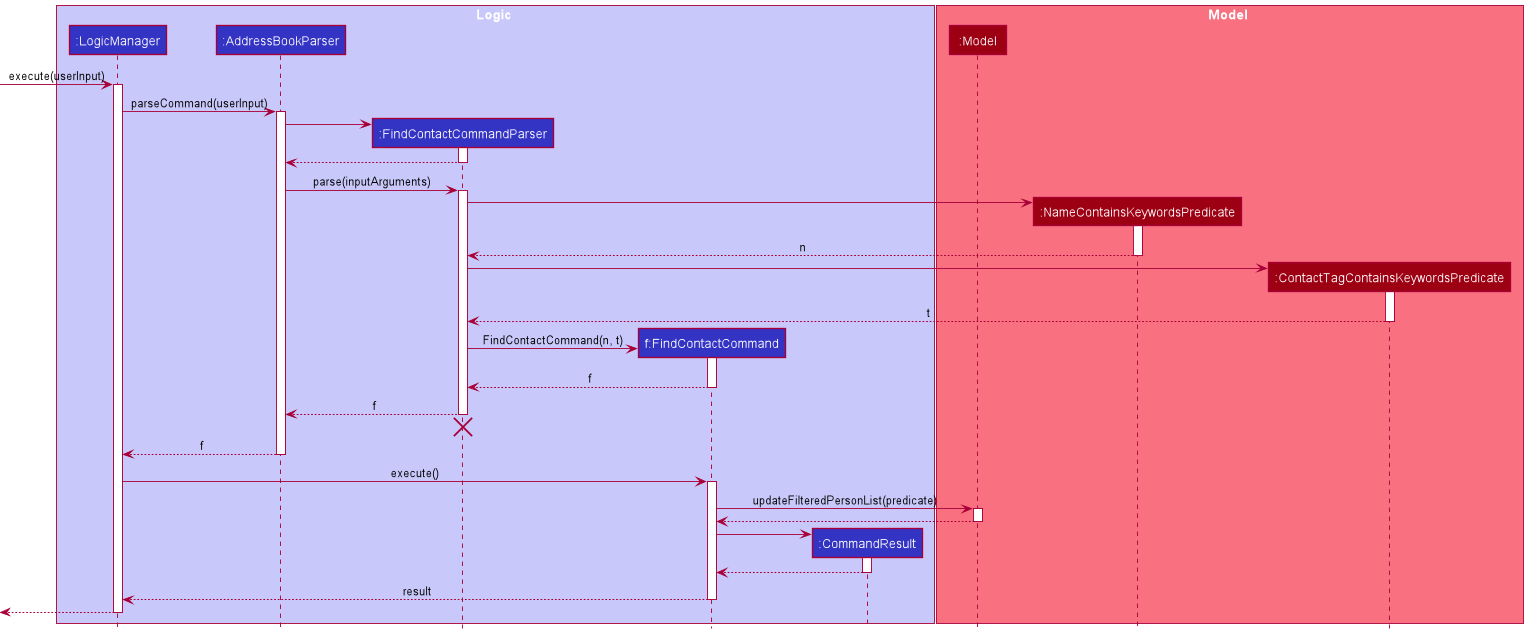
Note: The lifeline for FindContactCommandParser should end at the destroy marker (X) but due to a limitation of PlantUML, the lifeline reaches the end of diagram.
Note:The arguments for methods and constructors have been shortened for clarity in the diagram.
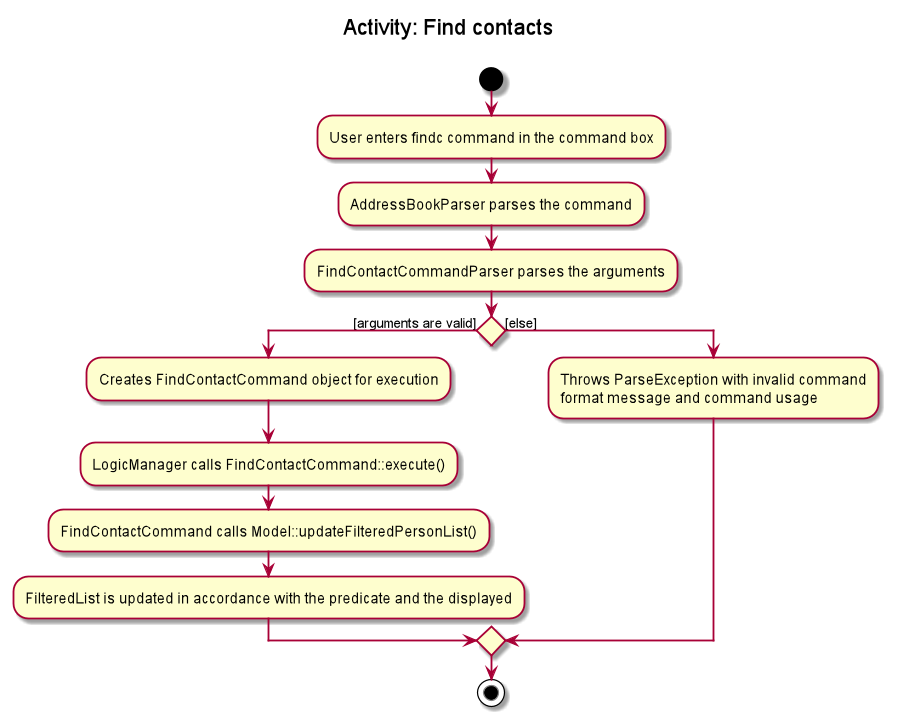
Activity Diagram
The activity diagram below shows the execution of the above example:
Design Considerations
Aspect: How names and tags matches:
-
Alternative 1 (current choice): Only full names are matched
- Pros: Filtered List will look less cluttered and allows users to easily look up a particular contact
- Cons: Users have less flexibility to search the contacts
-
Alternative 2: Names that contain the input phrase is matched
itself.
- Pros: Users have more flexibility to search the contacts
- Cons: The filtered list will be bloated and makes it difficult to look up a particular contact.
Undo/redo feature
Implementation
The undo/redo mechanism is facilitated by VersionedAddressBook. It keeps track of AddressBook states, stored internally as an addressBookStateList and currentStatePointer. Additionally, it implements the following operations:
-
VersionedAddressBook#commit()— Saves the current address book state in its history. -
VersionedAddressBook#undo()— Restores the previous address book state from its history. -
VersionedAddressBook#redo()— Restores a previously undone address book state from its history. -
VersionedAddressBook#canUndo()— Checks thatcurrentStatePointeris not pointing to the first state in theaddressBookStateList. -
VersionedAddressBook#canRedo()— Checks thatcurrentStatePointeris not pointing to the last state in theaddressBookStateList.
These operations are exposed in the Model interface as Model#commitAddressBook(), Model#undoAddressBook(), Model#redoAddressBook(), Model#canUndo and Model#canRedo respectively.
Given below is an example usage scenario and how the undo/redo mechanism behaves at each step.
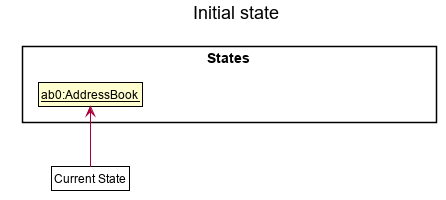
Step 1. The user launches the application for the first time. The VersionedAddressBook will be initialized with the initial address book state, and the currentStatePointer pointing to that single address book state.
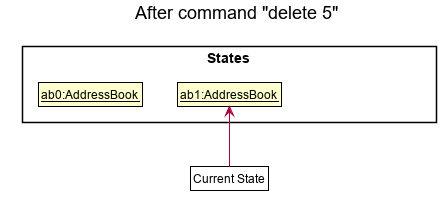
Step 2. The user executes delete 5 command to delete the 5th person in the address book. The delete command calls Model#commitAddressBook(), causing the modified state of the address book after the delete 5 command executes to be saved in the addressBookStateList, and the currentStatePointer is shifted to the newly inserted address book state.
Step 3. The user executes add n/David … to add a new person. The add command also calls Model#commitAddressBook(), causing another modified address book state to be saved into the addressBookStateList.
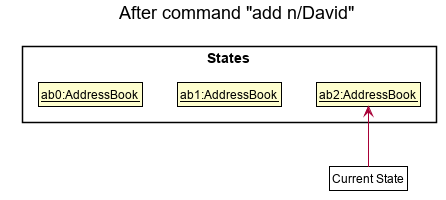
Note: If a command fails its execution, it will not call Model#commitAddressBook(), so the address book state will not be saved into the addressBookStateList.
Step 4. The user now decides that adding the person was a mistake, and decides to undo that action by executing the undo command. The undo command will call Model#undoAddressBook(), which will shift the currentStatePointer once to the left, pointing it to the previous address book state, and restores the address book to that state.
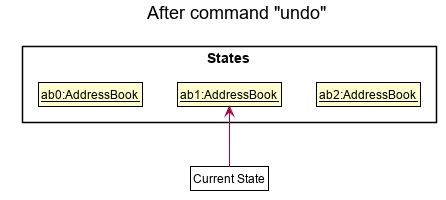
Note: If the currentStatePointer is at index 0, pointing to the initial AddressBook state, then there are no previous AddressBook states to restore. The undo command uses Model#canUndoAddressBook() to check if this is the case. If so, it will return an error to the user rather
than attempting to perform the undo.
The following sequence diagram shows how the undo operation works:
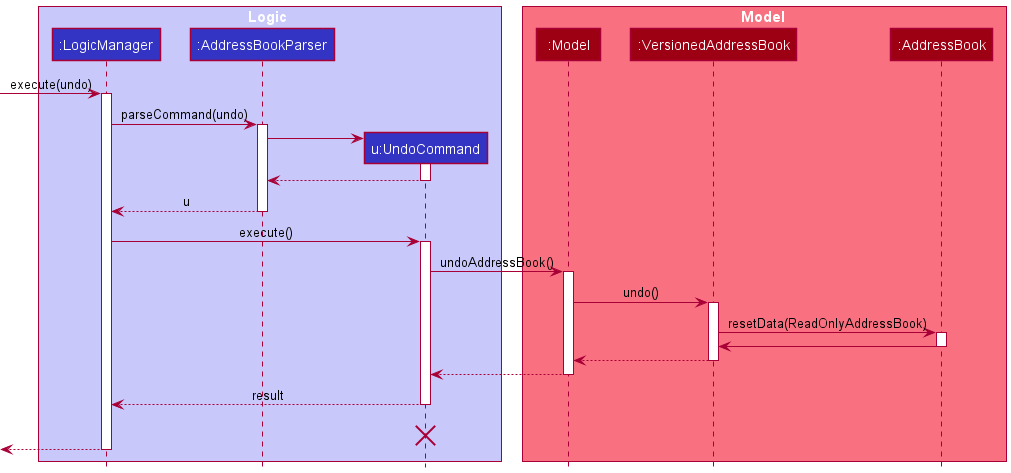
Note: The lifeline for UndoCommand should end at the destroy marker (X) but due to a limitation of PlantUML, the lifeline reaches the end of diagram.
The redo command does the opposite — it calls Model#redoAddressBook(), which shifts the currentStatePointer once to the right, pointing to the previously undone state, and restores the address book to that state.
Note: If the currentStatePointer is at index addressBookStateList.size() - 1, pointing to the latest address book state, then there are no undone AddressBook states to restore. The redo command uses Model#canRedoAddressBook() to check if this is the case. If so, it will return an error to the user rather than attempting to perform the redo.
Step 5. The user then decides to execute the command list. Commands that do not modify the address book, such as list, will usually not call Model#commitAddressBook(), Model#undoAddressBook() or Model#redoAddressBook(). Thus, the addressBookStateList remains unchanged.
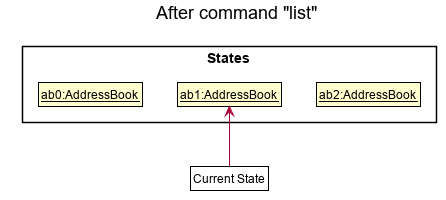
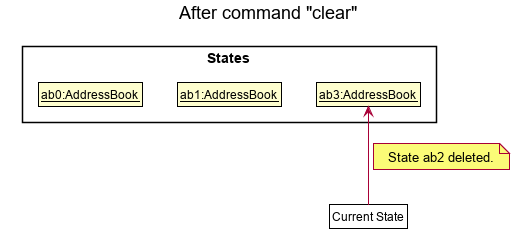
Step 6. The user executes clear, which calls Model#commitAddressBook(). Since the currentStatePointer is not pointing at the end of the addressBookStateList, all address book states after the currentStatePointer will be purged. Reason: It no longer makes sense to redo the add n/David … command. This is the behavior that most modern desktop applications follow.
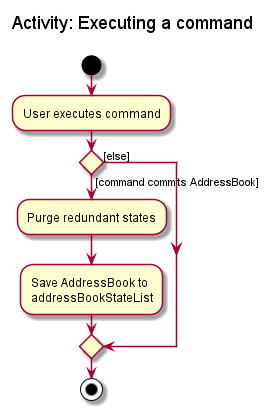
The following activity diagram summarizes what happens when a user executes a new command:
Design considerations:
Aspect: How undo & redo executes:
-
Alternative 1 (current choice): Saves the entire address book.
- Pros: Easy to implement.
- Cons: May have performance issues in terms of memory usage.
-
Alternative 2: Individual command knows how to undo/redo by
itself.
- Pros: Will use less memory (e.g. for
delete, just save the person being deleted). - Cons: We must ensure that the implementation of each individual command are correct.
- Pros: Will use less memory (e.g. for
Managing meeting participants
Implementation
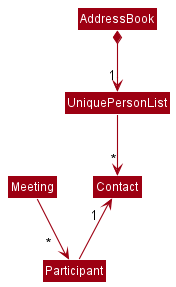
A Meeting object in AddresSoc has a set containing 0 or more participants, each represented by a
Participant object. Each Participant holds a reference to a Contact that exists in the
UniquePersonList of the AddressBook. This design is summarized below:
Users can directly modify the set of Participants of a Meeting during commands that allow them to specify
participant indexes, such as AddMeetingCommand and EditMeetingCommand. When entering these commands, the user optionally specifies the indexes of contacts in the
currently displayed contact list to participate in the meeting. During such commands, the
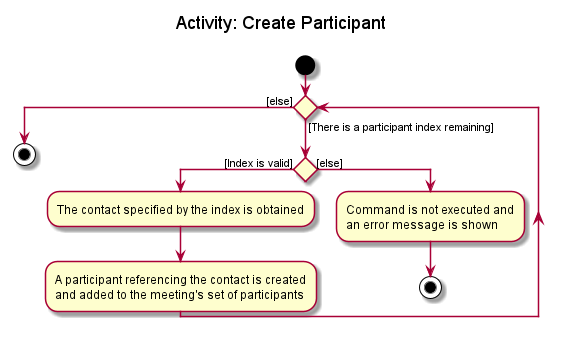
general process of creating and adding Participants to a Meeting’s participant set is as follows:
- If an index is specified, the validity of the index is checked.
- If the index is invalid, the command execution is stopped.
- If the index is valid, proceed to step 2.
- The
Contactspecified by the index is obtained. - A
Participantis created from theContactand added to theMeeting’s participant set. - Repeat steps 1 to 3 for all indexes given by the user.
This process is summarised in the activity diagram below.
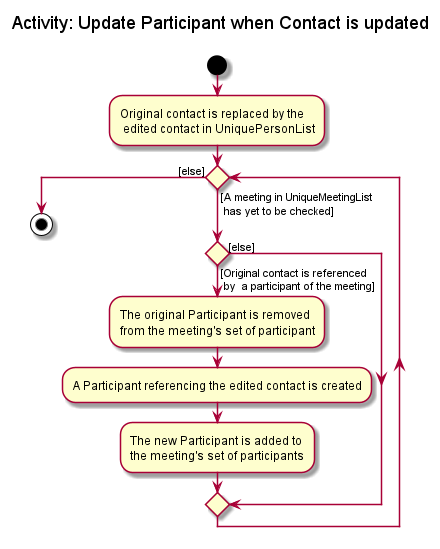
Another scenario when a Meeting may have its set of Participants modified is when a Contact object
is replaced by another Contact object in the UniquePersonList (ie. during the execution of EditContactCommand).
In this case, the Participant referencing the original Contact object is updated. Each Meeting that
this Participant participates in is replaced with a new Meeting containing the updated Participant.
It is important to note here that the entire UniqueMeetingList is looped through during this operation to check whether each Meeting is participated by this
Participant. The following activity diagram summarises this process:
Similarly, the deletion of a Contact from UniquePersonList during the execution of DeleteContactCommand also
updates participant sets by looping through the entire UniqueMeetingList. The process is identical to the above,
except that no replacement participant is created and added to the meeting’s participant set.
Design considerations:
Aspect: Whether each Contact should keep track of a list of Meetings it participates in:
-
Alternative 1 (current choice):
Contactsdo not keep track of theMeetingsthey participate in.- Pros: More testable. The
Contactclass does not depend onMeeting, which reduces the chance of regressions. - Cons: Slower as every meeting in the
UniqueMeetingListmust be checked whenever aContactis updated or deleted. The poor performance would be noticeable when there is a large number of meetings scheduled.
- Pros: More testable. The
-
Alternative 2: Each
Contactkeeps track of theMeetingsit participates in.- Pros: When updating or deleting contacts, the meetings whose participant sets need to be updated can be directly accessed from the contact. Thus, these operations are faster.
- Cons: Harder to implement. Moreover, the
MeetingandContactclasses will now depend on each other. The cyclic dependency makes the code less testable.
Reasons for choosing Alternative 1:
- It reduces regressions by preventing cyclic dependencies.
- The number of meetings that the target user (a busy NUS School of Computing student) would realistically schedule is not expected to be so large that the slower performance of alternative 1 is noticeable.
- Hence, testability was prioritised over performance.
Find meeting feature
This section describes how the find meeting feature was implemented. This feature allows the user to find meetings by specifying search terms for the name, date and/or tags of meetings.
Implementation
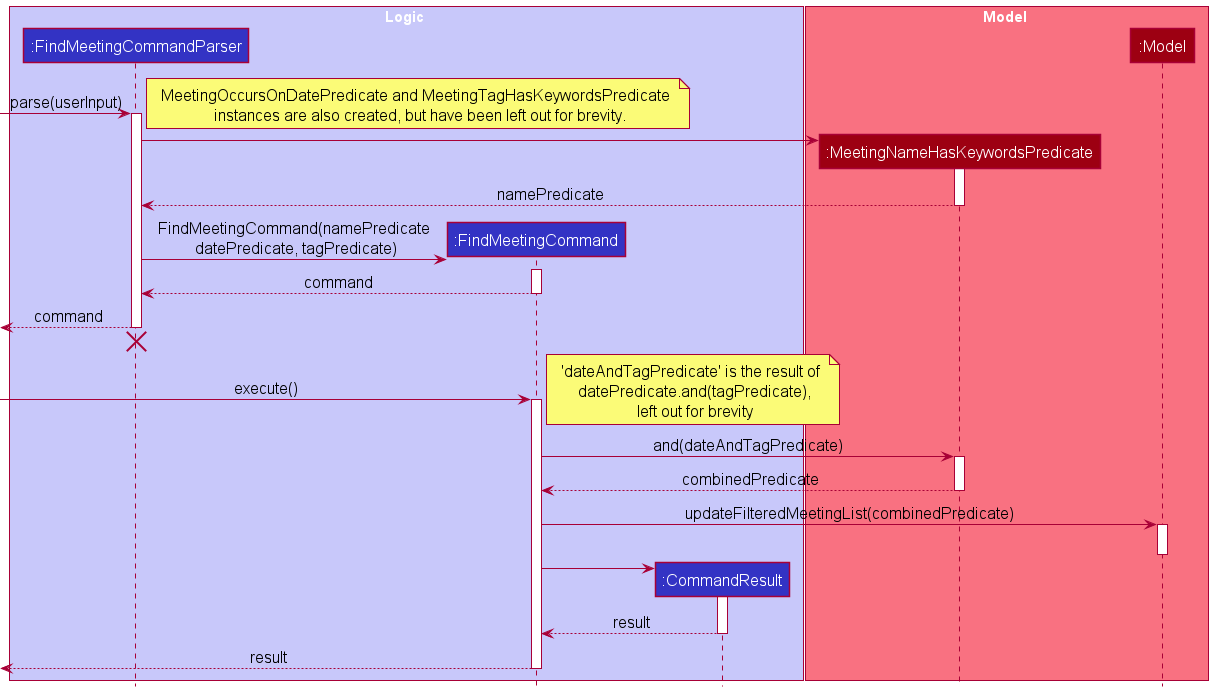
Similar to other commands, the user input (eg. findm n/Alex d/22-02-2022) is first parsed by the FindMeetingCommandParser to create a FindMeetingCommand,
which when executed will update the Model’s FilteredList using FilteredList#setPredicate.
During the parsing, the user input is used to create an instance each of MeetingNameHasKeywordsPredicate, MeetingTagHasKeywordsPredicate
and MeetingOccursOnDatesPredicate. (Note that all 3 are created regardless of whether the user specified a search term of that type.)
The 3 classes implement the Java generic interface Predicate<Meeting> (see here for documentation), with the test method implemented as follows:
- If no search terms of a type are specified by the user, the predicate corresponding to that type will always return true. For example, if the user does not specify any name or tag to search for,
MeetingNameHasKeywordsPredicate#testandMeetingTagHasKeywordsPredicate#testreturn true for any meeting. - If search terms of that type are specified, the predicate returns true if and only if the meeting being tested matches at least one of the search terms. For example, if the user specifies the dates
22-02-2022and11-04-2022,MeetingOccursOnDatesPredicate#testwill return true for meetings that occur on either date.
These 3 predicates are combined using the default method Predicate#and, thus allowing the user to combine searches of different types (e.g. searching for meetings occurring on specific days with the same tag). The predicate produced from and is then used as the argument for FilteredList#setPredicate.
The following sequence diagram summarises these interactions between the logic and model components when this feature is used:
Note: The lifeline for FindMeetingCommandParser should end at the destroy marker (X) but due to a limitation of PlantUML,
the lifeline reaches the end of diagram.
Design considerations:
Aspect: Whether to allow multiple search terms of each type (e.g. allow users to specify multiple dates to search for)
-
Alternative 1 (current choice): Allow multiple search terms of each type.
- Pros: More flexible for the user. Addresses legitimate user stories, e.g. users might want to view their schedule on multiple days at once to aid with their planning.
- Cons: Manual testing is much more difficult due to the large increase in number of possible user inputs.
-
Alternative 2: Allow only one search term per type.
- Pros: Much easier to test manually due to the smaller number of possible inputs.
- Cons: Less flexible for the user. Might not adequately address the problems they face in managing their academic/social life. E.g. separate searches are required to view schedule on different days; unable to view schedule across multiple days at once.
Reasons for choosing Alternative 1:
- It helps to solve problems faced by the user in a faster and more convenient way than alternative 2.
- The use of OOP through Java
Predicatesmakes automated testing easier as we can test theORbehaviour within each predicate separately before testing theANDbehaviour inFindMeetingCommand. This helps to partially make up for the relatively low manual testability compared to alternative 2.
Reminder feature
This section describes how the reminder feature can be used for users to be reminded of meetings that will occur within a certain time frame which the users can specify.
Implementation
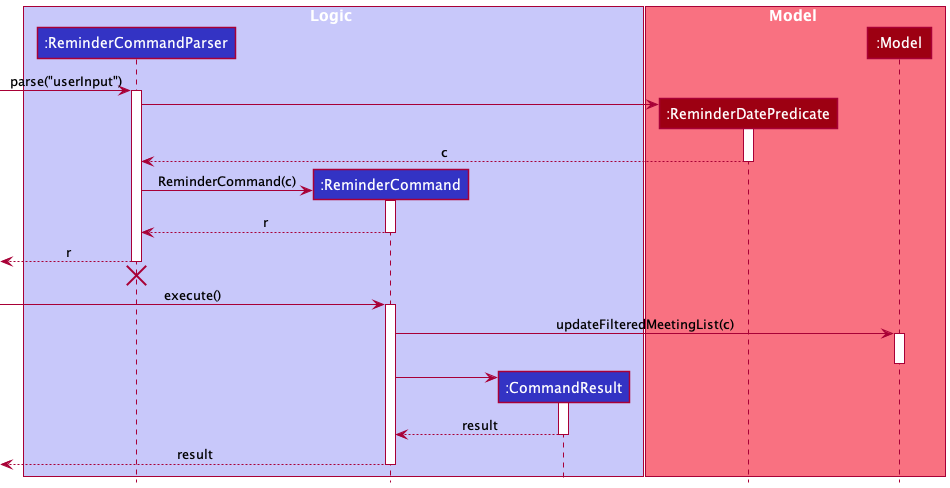
The reminder feature uses the ReminderDatePredicate.The condition to locate the meetings is provided through this.
The meetings in AddresSoc are extracted and stored in the FilteredList.
It is then used to update FilteredList using FilteredList#setPredicate.
The updated FilteredList is then displayed.
This operation uses the Model for Model#UpdateFilteredMeetingList.
Given below is an example usage scenario and how the Reminder mechanism behaves at each step.
- The user keys in and executes the command
reminder 2to locate all meetings within 2 days. - The command is parsed by
ReminderCommandParser. The prefixes and their respective keywords are extracted and saved in anArgumentMultimap. -
The inputs are then checked for their validity. If no exceptions are detected, a
ReminderDatePredicateand aReminderCommandwill be created. - The
ReminderCommand#executeis called which updates theFilteredListthat is currently being displayed.
The following sequence diagram shows how this works:
Note: The lifeline for ReminderCommandParser should end at the destroy marker (X) but due to a limitation of PlantUML,
the lifeline reaches the end of diagram.
Design considerations:
Aspect: How to allow users to receive reminders
-
Alternative 1 (current choice): Create a
remindercommand that allows users to specify the number of days to return the result of upcoming meetings.- Pros:
- Gives users flexibility in specifying the time frame they want to receive reminders for
- Easy to implement.
- Cons:
- User has to manually specify number of days.
- Pros:
-
Alternative 2: Set number of days reminders, so that when user call reminder command meetings
upcoming in a fixed number of days will be displayed.
- Pros:
- User does not have to manually specify number of days since it is fixed.
- Cons:
- User has no flexibility to specify the time range to receive reminders for.
- Pros:
Archive & Unarchive Features
Archive feature
This section describes how the archive feature can be used to be archive meetings that users do not want to appear in the meeting list , but still want to save the data. There is an unarchive command which is used to revert the archive command.
Implementation
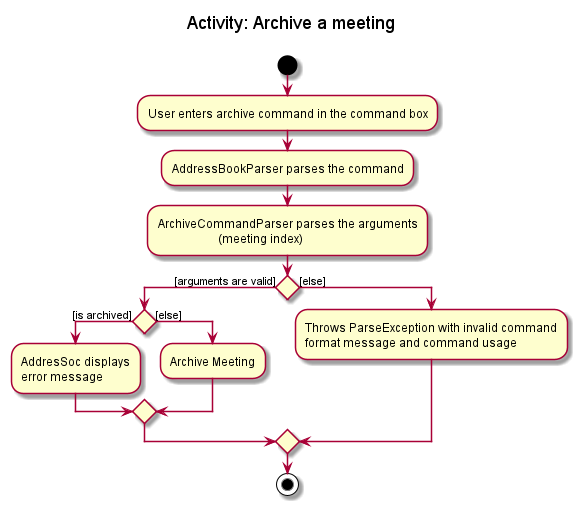
Users can archive a specific meeting by entering the archive index command. The following steps describe how this
behaviour is implemented.
The archive feature uses the ArchiveStatus.The condition to is used to check whether the meeting
is already archived or not.
The meetings in AddresSoc are extracted and stored in the FilteredList.
It is then used to update FilteredList using FilteredList#PREDICATE_SHOW_ALL_MEETINGS.
The updated FilteredList is then displayed.
This operation uses the Model for Model#UpdateFilteredMeetingList.
The following sequence diagram shows how this works:
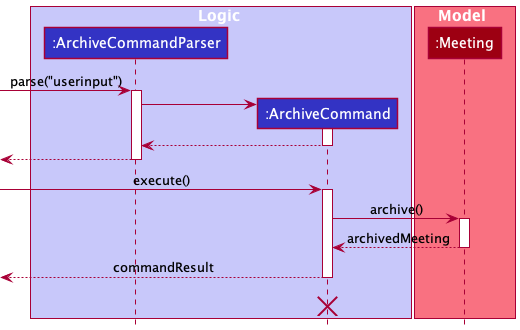
Note: The lifeline for ArchiveCommandParser should end at the destroy marker (X) but due to a limitation of PlantUML,
the lifeline reaches the end of diagram.
-
The user archives a
Meetingin the observableMeetingListwith commandarchive index.The index is parsed and archive command is executed. -
The meeting’s
ArchiveStatuswill be checked . If it is true, an error message will be displayed. -
Otherwise the meeting’s
ArchiveStatuswill be set to true by theMeeting#archive()method. -
The current
FilteredListwill be updated showing only the unarchived meetings, facilitated byModel#PREDICATE_SHOW_ALL_MEETINGS
Unarchive feature
This section shows how the archive feature can be reverted. The user can use the unarchive command so that the unarchived meeting appear in the meeting list.
Implementation
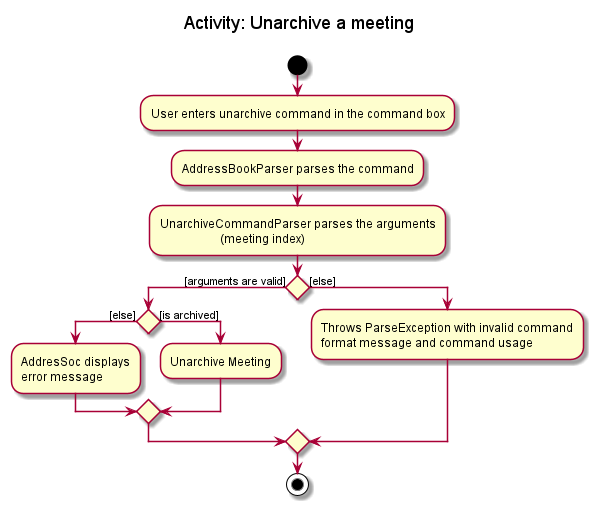
Users can unarchive a specific meeting by entering the unarchive index command. The following steps describe how this
behaviour is implemented.
The archive feature uses the ArchiveStatus.The condition to is used to check whether the meeting
is already archived or not.
The meetings in AddresSoc are extracted and stored in the FilteredList.
It is then used to update FilteredList using FilteredList#PREDICATE_SHOW_ALL_MEETINGS.
The updated FilteredList is then displayed.
This operation uses the Model for Model#UpdateFilteredMeetingList.
-
The user unarchives a
Meetingin the observablearchivelistwith commandunarchive index.The index is parsed and unarchive command is executed. -
The meeting’s
ArchiveStatuswill be checked . If it is false, an error message will be displayed. -
Otherwise the meeting’s
ArchiveStatuswill be set to false by theMeeting#archive()method. -
The current
FilteredListwill be updated showing all the unarchived meetings, facilitated byModel#PREDICATE_SHOW_ALL_MEETINGS
Documentation, logging, testing, configuration, dev-ops
Appendix: Requirements
Product scope
Target user profile: NUS School of Computing students who:
- have a need to manage a significant number of student contacts and meetings
- prefer desktop apps over other types
- can type fast and prefer typing to mouse interactions
- are reasonably comfortable using CLI apps
Value proposition: AddresSoC helps the student to
- keep track of the contacts of peers in the student’s network,
- organize the contacts for easier lookup, and
- manage the student’s social and academic life by keeping track of their schedule.
It completes these tasks faster than a typical mouse/GUI driven app.
User stories
Priorities: High (must have) - * * *, Medium (nice to have) - * *, Low (unlikely to have) - *
| Priority | As a … | I can … | So that … |
|---|---|---|---|
* * * |
user | add a contact | I can look it up if I need to find the contact. |
* * * |
user | delete a contact | I can remove contacts I no longer need or had added wrongly. |
* * * |
user | view all my contacts | I can see my full list of contacts at once. |
* * * |
user | add a meeting | I can look it up if I need to find the meeting. |
* * * |
user | delete a meeting | I can remove meetings that I had added wrongly or are already done. |
* * * |
user | view all my meetings | I can see my full list of meetings at once. |
* * * |
user who wants to contact a specific person | view a single contact and its details | |
* * * |
user who needs to meet my peers | schedule a meeting with specific contacts in my contact list | I can keep track of my meetings |
* * |
careless user who keyed in wrong information for a contact | edit the contact | I can correct the wrong information |
* * |
careless user who keyed in wrong information for a meeting | edit the meeting | I can correct the wrong information |
* * |
careless user | undo my previous action(s) | I can correct mistakes I made (eg. recover a deleted meeting). |
* * |
user who wants to schedule meetings with various people | tag meetings with specific types (e.g. lunch, project) | I can keep track of what each meeting is for. |
* * |
user who has many contacts | add tags to each contact | I can keep track of any notable information about the contact. |
* * |
user who wants to contact a specific person | search for that specific contact | I do not need to look through the entire list to find it. |
* * |
user who wants to schedule a meeting on a specific day | search for meetings occurring that day | I can see what time I am free that day. |
* * |
busy user with many meetings | search for meetings by name or tags | I can find specific meetings or groups of meetings easily. |
* * |
busy user with many meetings | be reminded of meetings happening in the next few days | I do not forget these meetings. |
* * |
busy user with many meetings | be alerted when I try to add a new meeting that clashes with existing ones | I do not overlook the clash. |
* * |
user who needs to manage a variety of contacts | categorize my contacts into subgroups | I can keep track of what group each contact is from. |
* * |
user who needs to manage a variety of contacts | search for contacts by their tags / grouping | I can find all contacts from a specific group / with a specific tag. |
* * |
user with many contacts in my contact list | sort contacts by name | I can locate a person easily. |
* * |
user with many meetings in my meeting list | sort meetings by date and time | I can see my earliest upcoming meetings. |
* |
user with many meetings in my meeting list | archive meetings that are irrelevant/completed | these meetings do not clutter my meeting list, but I can still refer to them if I need to. |
* |
long-term user of the app | archive contacts that may no longer be relevant | my contact list is less cluttered. |
* |
user who wants to add many new contacts quickly | add many contacts at once | I do not have to spend time adding them individually. |
* |
new user who already has a contact list on another app | import all my contacts into AddresSoC | I do not have to spend time adding them individually. |
Use cases
(For all use cases below, the System is the AddresSoc and the Actor is the user, unless specified otherwise)
Use case: Add a contact
MSS
- User requests to add a new contact to the contact list
-
AddresSoc adds the contact
Use case ends.
Extensions
-
1a. The contact list does not exist.
- 1a1. AddresSoc creates a new list.
Use case resumes at step 2.
-
1a. The arguments specified by the user are invalid.
-
1a1. AddresSoc shows an error message.
Use case resumes at step 1.
-
Use case: Delete a contact
MSS
- User requests to list contacts
- AddresSoc shows a list of contacts
- User requests to delete a specific contact in the list
-
AddresSoc deletes the contact
Use case ends.
Extensions
-
2a. The list is empty.
Use case ends.
-
3a. The contact specified by user is invalid.
-
3a1. AddresSoc shows an error message.
Use case resumes at step 2.
-
Use case: Add a meeting
MSS
- User requests to add a meeting to the meeting list
-
AddresSoc adds the meeting
Use case ends.
Extensions
-
1a. The arguments passed are invalid.
-
1a1. AddressBook shows an error message.
Use case resumes at step 1.
-
-
1b. The mandatory arguments are not passed.
-
1b1. AddressBook shows an error message.
Use case resumes at step 1.
-
Use case: Delete a meeting
MSS
- User requests to list meetings
- AddresSoc shows a list of meetings
- User requests to delete a specific meeting in the list
-
AddresSoc deletes the meeting
Use case ends.
Extensions
-
2a. The list is empty.
Use case ends.
-
3a. The specified meeting is invalid.
-
3a1. AddresSoc shows an error message.
Use case resumes at step 2.
-
Use case: Find meetings
MSS
- User requests to find meetings satisfying their desired search terms.
- AddresSoc shows the list of meetings satisfying the search terms.
Extensions
- 1a. User does not provide any arguments as search terms.
-
1a1. AddresSoc shows an error message.
Use case resumes at step 1.
-
- 1b. User provides invalid arguments as search terms.
-
1b1. AddresSoc shows an error message.
Use case resumes at step 1.
-
Non-Functional Requirements
- Should work on any mainstream OS as long as it has Java
11or above installed. - Should be able to hold up to 1000 persons without a noticeable sluggishness in performance for typical usage.
- A user with above average typing speed should be able to accomplish most of the tasks faster using commands than using the mouse.
- Should be easily maintainable and scalable (i.e. use of OOP and high cohesion) to implement new features in future.
- Should have high testability by reducing use of coupling.
- Should be well documented for users to understand how to use the product.
- Should be well documented for developers to understand how to further improve the product.
Glossary
- Mainstream OS: Windows, Linux, Unix, OS-X
Appendix: Instructions for manual testing
Given below are instructions to test the app manually.
Note: These instructions only provide a starting point for testers to work on;
testers are expected to do more exploratory testing.
Launch and shutdown
-
Initial launch
-
Download the jar file and copy into an empty folder
-
Double-click the jar file Expected: Shows the GUI with a set of sample contacts and meetings. The window size may not be optimum.
-
-
Saving window preferences
-
Resize the window to an optimum size. Move the window to a different location. Close the window.
-
Re-launch the app by double-clicking the jar file.
Expected: The most recent window size and location is retained.
-
Saving & Loading data
-
Generating a save file when there is no saved data found.
- Prerequisites: There is no
addressoc.jsonfile in a folder calleddatalocated in the same directory as the jar file. -
Launch the app and enter the exit command (Note: a command must be entered for the data to be saved, so closing the app via the GUI will not work unless another command has already been entered).
Expected: An
addressoc.jsonfile containing the sample contact list and meeting list data is generated in thedatafolder located in the same directory as the jar file
- Prerequisites: There is no
-
Handling an invalid save file.
- Prerequisites: There is already an
addressoc.jsonfile in the correct folder. - Open the json file in a text editor and delete one line (eg. the first line)
-
Launch the app
Expected: The contact list and meeting list are both empty.
- Prerequisites: There is already an
Adding a contact
-
Adding a valid contact.
- Prerequisites: Default list of contacts is loaded into the application.
- Test case:
addc n/Bobby Low e/bobby.low@u.nus.edu p/94323302 th/bLow01 t/friends
Expected: New contact is added to the list. Details of added meeting is shown in status message.
-
Attempting to add an invalid contact.
- Prerequisites: Same as above.
- Test case:
addc n/Jacky Yeo e/jacky.yeo@u.nus.edu p/94123093 th/rak_01
Expected: No contact is added. Error message shown in the status message. - Other incorrect
addccommands to try:addc n/Alice p/92345678 e/xyz th/alice,addc n/A!@ p/92345678 e/a@a.com th/alice,addc
Expected: Similar to previous.
Editing a contact
Prerequisites: List all contacts using the listc command. Multiple contacts in the list. There is no contact with the telegram handle rak_02.
- Editing a contact while all contacts are being shown
-
Test case:
editc 1 th/rak_02
Expected: The first contact in the list is edited. Details of the edited contact are shown in the status message. -
Test case:
editc 0 th/rake_02
Expected: No meeting is edited. Error details shown in the status message. -
Other incorrect
editccommands to try:editc th/rak_02,editc 1
Expected: Similar to previous.
-
Deleting a contact
-
Deleting a contact while all contacts are being shown
-
Prerequisites: List all persons using the
listccommand. Multiple contacts in the list. -
Test case:
deletec 1
Expected: First contact is deleted from the list. Details of the deleted contact shown in the status message. -
Test case:
deletec 0
Expected: No person is deleted. Error details shown in the status message. -
Other incorrect
deleteccommands to try:deletec,deletec x,...(where x is larger than the list size)
Expected: Similar to previous.
-
Finding contacts
-
Finding contacts with valid search terms
- Prerequisites: List all contacts using the
listccommand. Multiple contacts in the list. - Test case:
findc n/alex t/friends
Expected: Contacts namedalexwith a tag calledfriendswill be displayed. The number of contacts with the namealexand the tagfriendsis shown in the status message.
- Prerequisites: List all contacts using the
-
Attempting to find contacts with invalid search terms
- Prerequisites: Same as above.
- Test case:
findc p/12345678
Expected: No contacts are searched. Error details shown in status message. - Other incorrect
findccommands to try:findc th/john_01,findc alex
Expected: Similar to previous.
Adding a meeting
- Adding meetings (including clashing and non-clashing meetings)
- Prerequisites: Default list of meetings are loaded into the application.
- Test case:
addm n/Lunch with Friends d/30-04-2022 st/1100 et/1300 t/important
Expected: New meeting is added to the list. Details of added meeting is shown in status message. - Test case:
addm n/Project Meeting with Advisor d/30-04-2022 st/1200 et/1400
Expected: New meeting is added to the list. Warning notification pop up due to clash in timing with previously added meeting. Details of added meeting and meeting it clashes with is shown in status message. -
Test case:
addm n/Project Meeting with Advisor d/30-04-2022 st/1600 et/1800
Expected: No meeting is added due to duplicate meeting with meeting added in previous test case. Error details shown in the status message. - Other incorrect
addmcommands to tryaddm n/Dinner with Family d/24-05-2022,addm n/2103 Exam d/23-04-2022 st/1500 et/1400,addm
Expected: No meeting is added. Error details shown in the status message.
Editing a meeting
- Editing a meeting while all meetings are being shown
-
Prerequisites: List all meetings using the
listmcommand. Multiple meetings in the list. -
Test case:
editm 1 d/30-04-2022 st/1630 et/1730
Expected: The first meeting in the list is edited. Details of the edited meeting is shown in the status message. - Test case:
editm 0 d/30-04-2022
Expected: No meeting is edited. Error details shown in the status message. - Other incorrect
editmcommands to try:editm d/10-04-2022,editm 2
Expected: Similar to previous.
-
Deleting a meeting
- Deleting a meeting while all meetings are being shown
- Prerequisites: List all meetings using the
listmcommand. Multiple meetings in the list. - Test case:
deletem 1
Expected: First meeting is deleted from the list. Details of the deleted meeting is shown in the status message. - Test case:
deletem 0
Expected: No meeting is deleted. Error details shown in the status message. - Other incorrect
deletemcommands to try:deletem,deletem x, (where x is larger than the list size)
Expected: Similar to previous.
- Prerequisites: List all meetings using the
Finding meetings
- Finding meetings by search terms of one type only.
-
Test case:
findm d/12 03 2022Expected: The full list of meetings is still shown as the find operation is not carried out. Error details shown in the status message.
-
Test case:
findm n/projectExpected: All meetings with the word
project(not case-sensitive) in their name are listed. For example, if the sample meeting data is being used, the meetingsCS2103T projectandCS2101 projectare listed. The number of meetings listed is shown in the status message. -
Test case:
findm d/12-03-2022 d/15-03-2022Expected: All meetings occurring on either
12-03-2022or15-03-2022are listed. For example, if the sample meeting data is being used, the same 2 meetings are listed. Similar to above for the status message.
-
- Finding meetings by search terms of different types.
-
Test case:
findm n/project d/12-03-2022Expected: All meetings that both have the word
project(not case-sensitive) in their name and occur on12-03-2022are listed. For example, if the sample meeting data is being used, only the meetingCS2103T projectis listed. Similar to above for the status message.
-
Undo/Redo
- Undoing and redoing add contact command
-
Prerequisites: No contacts sharing any of the fields with contact to be added in test case.
-
Test case:
addc n/Bobby Tan p/98127492 e/Bobby01@gmail.com th/Bobby012followed byundo
Expected: Contact will first be added to the list and details of the added contact is shown in the status message. The contact will be removed afterundois executed and a successfulundomessage is shown. -
Test case:
addc n/Bobby Tan p/98127492 e/Bobby01@gmail.com th/Bobby012followed byundo, thenredo
Expected: Similar to previous test case. However, contact will be added back to the list after execution ofredo, and a successfulredomessage is shown.
-
- Undoing and redoing without prior changes to the lists
- Prerequisites: No command has been executed since the application was opened, or all executed commands have already been undone.
- Test case:
undowithout any prior changes to the lists
Expected: No change to the lists. Error details are shown in the status message. - Test case:
redowithout any prior successfulundocommand
Expected: No change to the lists. Error details are shown in the status message.
Reminder
- Getting a reminder for meetings in the meeting list
- Prerequisites: List all meetings using the
listmcommand. Multiple meetings in the list. - Test case:
reminder 1
Expected: All meetings whose date are either the current day or the next day are listed. The number of meetings listed is shown in the status message.
- Prerequisites: List all meetings using the
Archiving a meeting
-
Archiving a meeting while all meetings are being shown
-
Prerequisites: List all meetings using the
listmcommand. Multiple meetings in the list. -
Test case:
archive 1
Expected: First meeting is archived and no longer shown in the meeting list. Details of the archived meeting shown in the status message. -
Test case:
archive 0
Expected: No meeting is archived. Error details shown in the status message. -
Other incorrect archive commands to try:
archive,archive x,...(where x is larger than the list size)
Expected: Similar to previous.
-
Unarchiving a meeting
-
Unarchiving a meeting while all archived meetings are being shown
-
Prerequisites: List all archived meetings using the
archivelistcommand. Multiple meetings in the list. -
Test case:
unarchive 1
Expected: First meeting is unarchived and is no longer in the archive list. Details of the archived contact shown in the status message. The main meeting list is shown. -
Test case:
unarchive 0
Expected: No meeting is archived. Error details shown in the status message. -
Other incorrect archive commands to try:
unarchive,unarchive x,...(where x is larger than the list size)
Expected: Similar to previous.
-