User Guide
AddresSoC is a desktop app for School of Computing (SoC) students to keep track of their student network and add meetings. It is optimized for use via a Command Line Interface (CLI) while still having the benefits of a Graphical User Interface (GUI). If you’re a student who can type fast, AddresSoC can get your contact and schedule management tasks done faster than traditional GUI apps.
Quick start
-
Ensure you have Java
11or above installed in your Computer. -
Download the latest
addressoc.jarfrom here. -
Copy the file to the folder you want to use as the home folder for your AddresSoC.
-
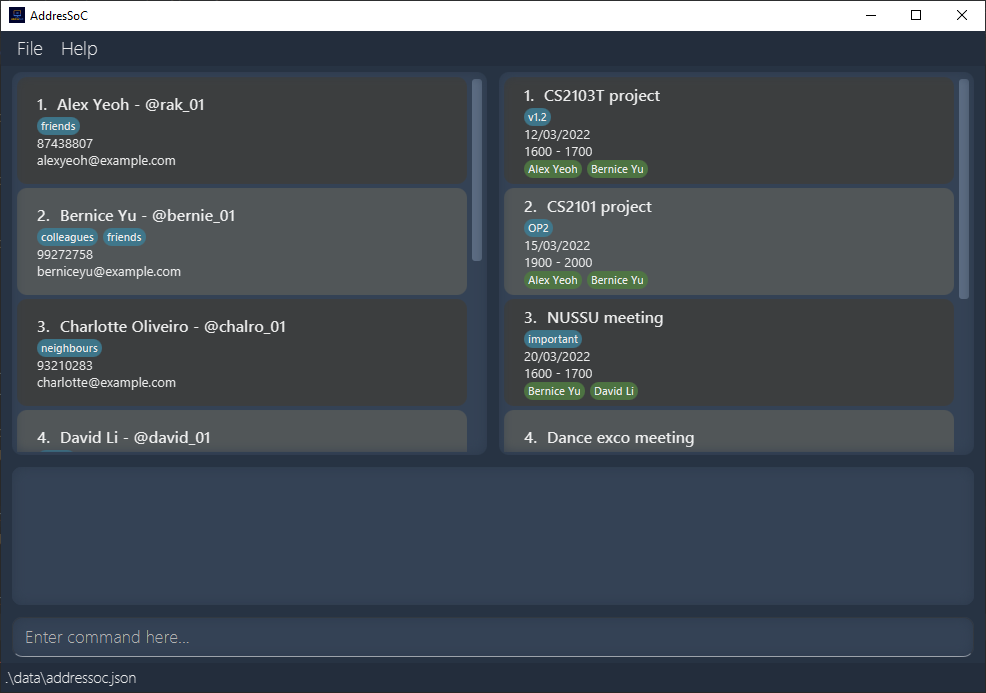
Double-click the file to start the app. The GUI similar to the one below should appear in a few seconds. Note how the app contains some sample data.
-
Type the command in the command box and press Enter to execute it. e.g. typing
helpand pressing Enter will open the help window.
Some example commands you can try:-
listc: Lists all your contacts. -
addcn/John Doe e/johnd@u.nus.edu p/98076034 th/johnd: Adds a contact namedJohn Doeto your contact list. -
addmn/SE Team Meeting d/23/03/2022 st/1415 et/1615: Adds a meeting called “SE Team Meeting” on 23 March 2022 from 1415hrs to 1615hrs. -
deletec3: Deletes the 3rd contact shown in your currently displayed contact list. -
clear: Deletes all your contacts and meetings. -
exit: Exits the app.
-
-
You may refer to the Features below for details of each command.
Features
 Notes about the command format:
-
Words in
UPPER_CASEare the parameters to be supplied by you.
e.g. inaddc n/NAME,NAMEis a parameter which can be used asaddc n/John Doe. -
Items in square brackets are optional.
e.g.n/NAME [t/TAG]can be used asn/John Doe t/friendor asn/John Doe. -
Items with
… after them can be used multiple times including zero times.
e.g.[t/TAG]…can be used ast/(i.e. 0 times),t/friend,t/friend t/familyetc. -
Parameters can be in any order.
e.g. if the command specifiesn/NAME p/PHONE_NUMBER,p/PHONE_NUMBER n/NAMEis also acceptable. -
If a parameter is expected only once in the command but you specified it multiple times, only the last occurrence of the parameter will be taken.
e.g. if you specifyp/12341234 p/56785678, onlyp/56785678will be taken. -
Extraneous parameters for commands that do not take in parameters (such as
listc,listm,help,exitandclear) will be ignored.
e.g. if the command specifieshelp 123, it will be interpreted ashelp.
Contact
Listing all contacts : listc
Shows you all the contacts in your contact list.
Format: listc
Adding a contact : addc
Adds the specified contact to your contact list.
Format: addc n/NAME e/EMAIL p/PHONE_NUMBER th/TELEGRAM_HANDLE [t/TAGS]...
- Adds a person into your contact list with given email, phone number, telegram handle.
- Optionally, tags can also be specified for the contact.
Examples:
-
addc n/Alice Lee e/alice.lee@u.nus.edu p/786454454 th/theor9 t/database expert t/CS2103 teammateadds the contact Alice Lee with the given email, phone, telegram and tags. -
addc n/Bob Tan p/91234567gives an error message as e/EMAIL and th/TELEGRAM is not optional.
 Caution:
Duplicate contacts with the same name, phone number, email or telegram handle cannot be added into the app.
Caution:
Duplicate contacts with the same name, phone number, email or telegram handle cannot be added into the app.
Deleting a contact : deletec
Removes the specified person from your currently displayed contact list.
Format: deletec CONTACT_INDEX
- Deletes the contact at the specified CONTACT_INDEX.
- CONTACT_INDEX refers to the index number shown in your currently displayed contact list.
- The index must be a positive integer 1, 2, 3, …
Examples:
-
deletec 2deletes the 2nd person in your currently displayed contact list. -
deletec 0returns an error for invalid input as 0 is not a positive integer.
Editing a contact : editc
Edits an existing contact in your currently displayed contact list.
Format: editc CONTACT_INDEX [n/NAME] [p/PHONE] [e/EMAIL] [th/TELEGRAM_HANDLE] [t/TAG]…
- Edits the contact at the specified
CONTACT_INDEX. -
CONTACT_INDEXrefers to the index number shown in your currently displayed contact list. -
CONTACT_INDEXmust be a positive integer 1, 2, 3, … - At least one of the optional fields must be provided.
- Existing contact details will be updated according to your input fields.
 Tip:
When editing tags, the existing tags of the contact will be removed i.e. adding of tags is not cumulative. You can remove all the person’s tags by typing
Tip:
When editing tags, the existing tags of the contact will be removed i.e. adding of tags is not cumulative. You can remove all the person’s tags by typing t/ without specifying any tags after it.
Examples:
-
editc 1 p/91234567 e/johndoe@example.comedits the phone number and email address of the 1st contact to be91234567andjohndoe@example.comrespectively. -
editc 2 n/Betsy Crower t/edits the name of the 2nd contact to beBetsy Crowerand clears all existing tags.
Note: The new edited contact follows the same constraints as a new contact to be added using addc command.
Locating contacts by name and tag: findc
Finds the contacts that match your search criteria as explained below:
Format: findc [n/NAMES]... [t/TAGS]...
- For both
NAMESandTAGS:- The search is case-insensitive e.g.
t/friendsmatchesFriends - Only full words are matched e.g.
n/alexmatchesAlex Yeohbut notAlexander Yeoh
- The search is case-insensitive e.g.
- If you specify only
n/NAMES, contacts matching at least one ofn/NAMESwill be returned. - If you specify only
t/TAGS, contacts matching at least one oft/TAGSwill be returned. - If you specify both
n/NAMESandt/TAGS, contacts matching at least one ofn/NAMESand at least one oft/TAGSwill be returned.
Examples:
-
findc n/alex n/royreturns the contacts withalexorroyin their names. -
findc t/friends t/familyreturns the contacts matching thefriendstag or thefamilytag or both .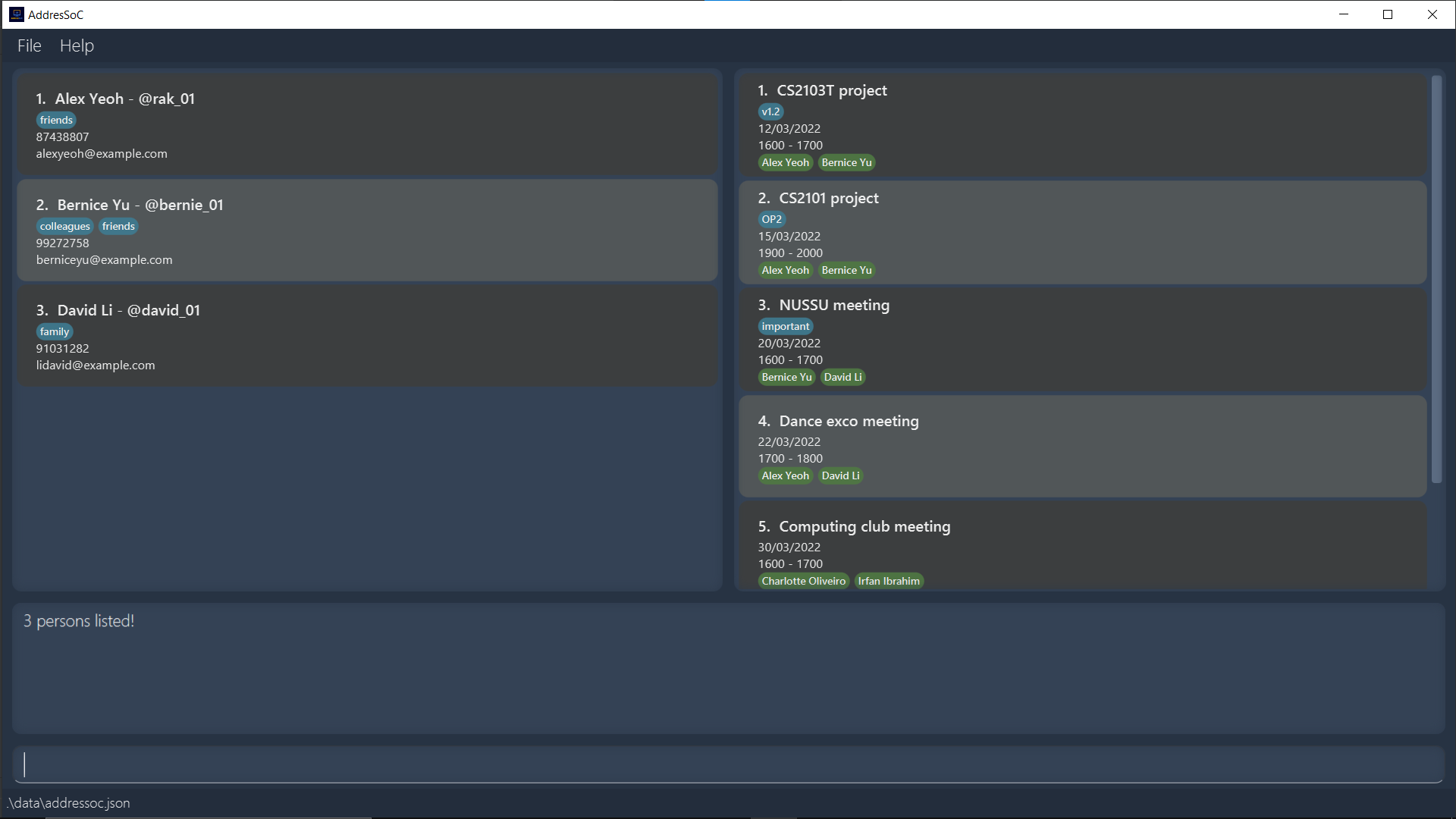
-
findc n/alex t/friendsreturnsAlex Yeohas the contact’s name containsalexand the contact is tagged withfriends. -
findc n/Alex n/David t/family t/friendswill returnAlex Yeoh,David Lias both contacts’ names contain eitheralexordavidand both contacts are labelled with either thefamilytag or thefriendstag or both.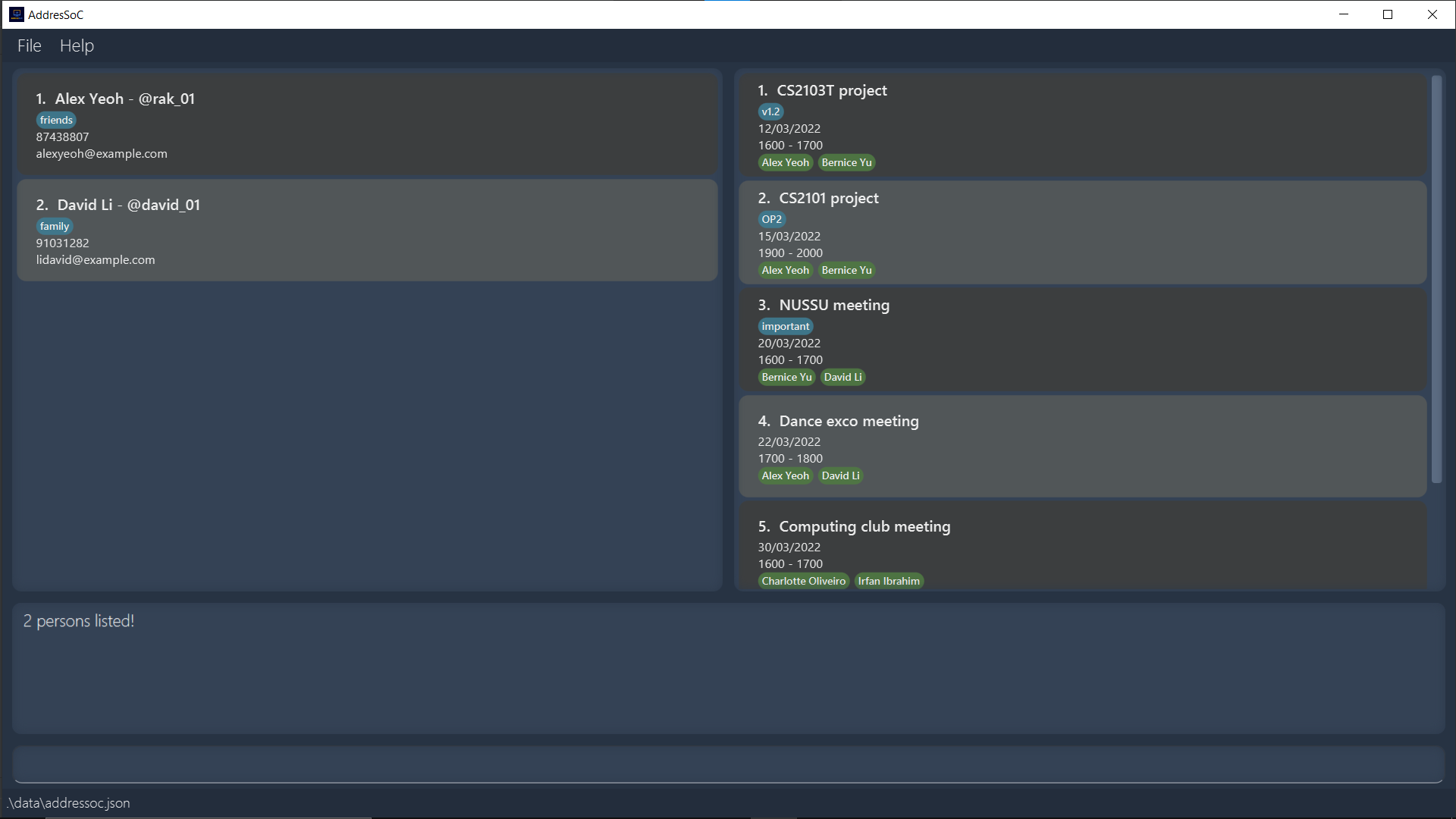
Sorting contacts : sortc
Sort contacts in the displayed contact list according to name.
Format: sortc
- Sort contacts according to name in ascending alphabetical order.
Meeting
Listing all meetings : listm
Shows you a list of all meetings in your meeting list.
Format: listm
Adding a meeting : addm
Adds a meeting to your meeting list.
Format: addm n/NAME d/DATE st/START_TIME et/END_TIME [pt/CONTACT_INDEX]... [t/TAGS]...
- Adds a meeting with a specified date, start time and end time to your meeting list.
-
DATErequires the format DD/MM/YYYY or DD-MM-YYYY e.g. 20/02/2022 or 20-02-2022. -
START_TIMEandEND_TIMErequires the format hhmm e.g. 2359. -
START_TIMEneeds to be earlier thanEND_TIME. - Optionally, the contacts involved in the meeting can also be specified by a
CONTACT_INDEX. -
CONTACT_INDEXrefers to the index number shown in your currently displayed contact list. -
CONTACT_INDEXmust be a positive integer 1, 2, 3, … - Optionally, tags can also be specified for the meeting.
Note: The app will notify you in case of any clash in meeting timings upon adding a meeting. You
may find information regarding the meetings involved in the clash in the status message given.
Examples:
-
addm n/CS2103 Project Discussion d/23-02-2022 st/1800 et/1930 pt/1 pt/2 pt/3 pt/4 pt/5Adds the meeting “CS2103 Project Discussion” with your given date, time and participants. -
addm n/JAVA Workshop d/23-02-2022 st/1030 et/1230Adds meeting “JAVA Workshop” with your given date and time. -
addm n/Job Interview st/1500 et/1700Returns error message as d/DATE is missing. -
addm n/CS2102 Project Discussion d/25/03/2022 st/1500 et/1400Returns error message as your end time inputet/1400is earlier than your start time inputst/1500.
Caution:
Duplicate meetings with the same name and date cannot be added into the app.
Deleting a meeting : deletem
Deletes the specified meeting from your currently displayed meeting list.
Format: deletem MEETING_INDEX
- Deletes the meeting at the specified
MEETING_INDEX. -
MEETING_INDEXrefers to the index number shown in your currently displayed meetings list. -
MEETING_INDEXmust be a positive integer 1, 2, 3, …
Examples:
-
deletem 3deletes the 3rd meeting in your currently displayed meeting list. -
deletem -1returns an error for invalid input as -1 is not a positive integer.
Editing a meeting : editm
Edits an existing meeting in your currently displayed meeting list.
Format: editm MEETING_INDEX [n/NAME] [d/DATE] [st/START_TIME] [et/END_TIME] [pt/PARTICIPANTS_INDEX]... [t/TAGS]...
- Edits the meeting at the specified
MEETING_INDEX. -
MEETING_INDEXrefers to the index number shown in your currently displayed meeting list. -
MEETING_INDEXmust be a positive integer 1, 2, 3, … - At least one of the optional fields must be provided.
- Existing meeting details will be updated according to your input fields.
Tip:
When editing participants and tags, the existing participants and tags of the contact will be removed i.e.
adding of participants and tags is not cumulative. You can remove all the meeting’s participants and tags by typing
pt/ t/ without specifying any participants and tags after it respectively.
Examples:
-
editm 1 n/cs2103 project et/1930Edits the meeting name and end time of the 1st meeting to becs2103 projectand1930respectively. -
editm 2 pt/ t/Clears all existing participants and all existing tags of the 2nd meeting.
Note: The new edited meeting follows the same constraints as a new meeting to be added using addm command.
Locating meetings by date, name and tag: findm
Finds meetings that match your search criteria as explained below:
Format: findm [d/DATES]... [n/NAMES]... [t/TAGS]...
- If you specify only
d/DATES, meetings occurring on any of theDATESwill be shown. Note that theDATESmust be specified in either the DD-MM-YYYY or DD/MM/YYYY format. - If you specify only
n/NAMES, meetings matching at least one ofn/NAMEwill be shown. - If you specify only
t/TAGS, meetings matching at least one oft/TAGSwill be shown. - For
NAMESandTAGS:- The search is case-insensitive e.g.
t/planningmatchesPlanning. - Only full words are matched e.g.
n/projmatchesproj meetingbut notproject meeting.
- The search is case-insensitive e.g.
-
If you specify more than one type of input, meetings matching at least one of each type will be returned.
eg. If you specify both
n/NAMESandt/TAGS, meetings matching at least one ofNAMESand at least one ofTAGSwill be returned.
Examples:
-
findm n/event n/projectreturns meetings titledEvent,event planning,Project Meeting, etc. -
findm n/event d/18-06-2022 t/importantreturns a meeting that occurs on18-06-2022, is namedevent planningand has a tag calledimportant. -
findm n/event n/project d/01-06-2022returns meetings that occur on01-06-2022and are namedevent planningorproject, etc.
Sorting meetings : sortm
Sorts meetings in the displayed meeting list according to date and time.
Format: sortm
- Sorts meeting according to date.
- Meetings with the same date are sorted according to time.
Reminder : reminder
Format: reminder NUM_OF_DAYS
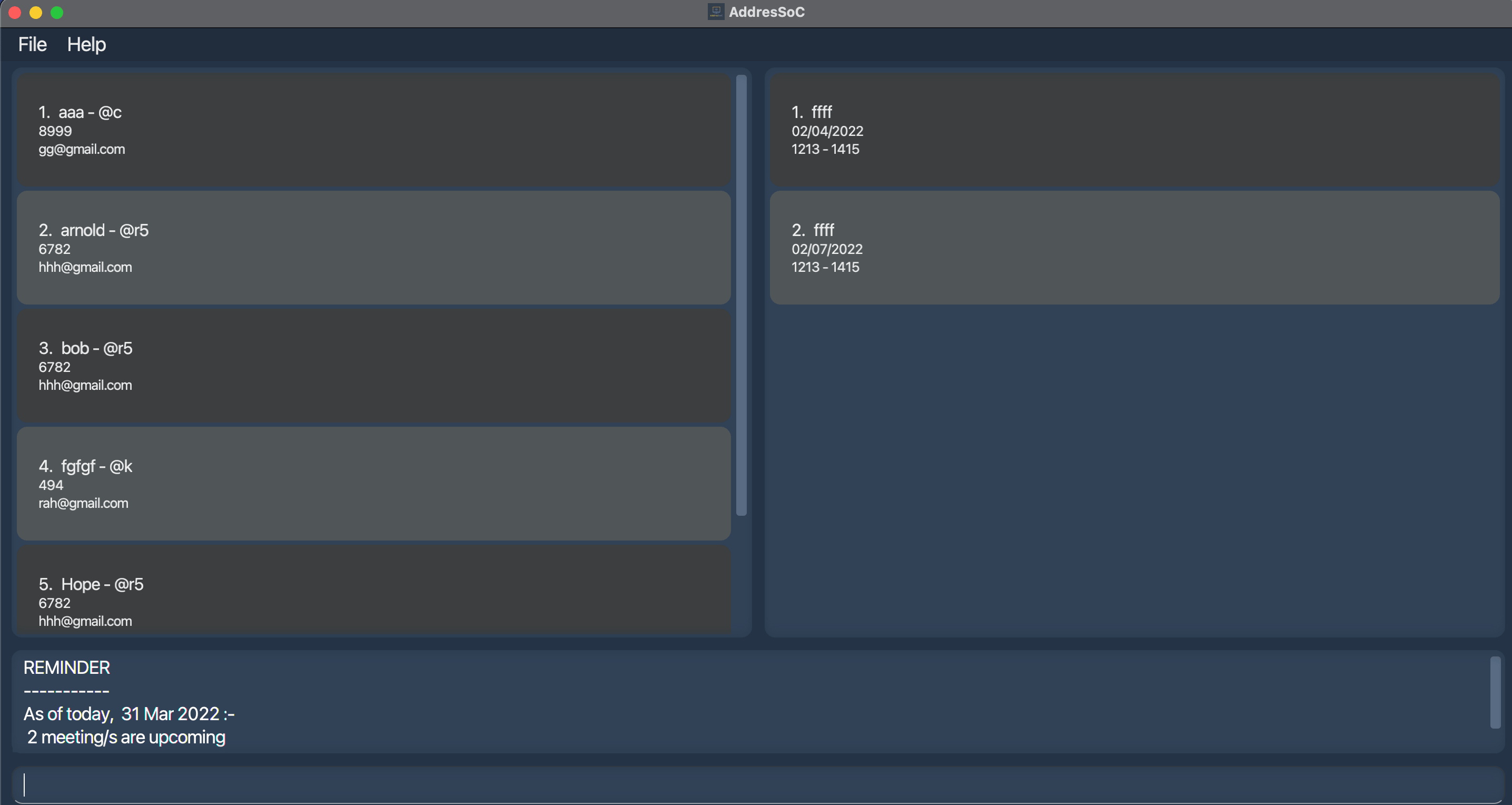
Reminds you of meetings that occur within the given number of days.
Examples:
-
Reminder 2lists meetings that occur within 2 days. -
Reminder 100lists meetings that occur within 100 days.
Note: Reminder will not remind you of archived meetings.
Archive : archive
Archives the meeting specified by the meeting index. The archived meetings are stored separately in an archived meeting list.
Format: archive MEETING_INDEX
- Archives the meeting at the specified
MEETING_INDEX. -
MEETING_INDEXrefers to the index number shown in your currently displayed meetings list. -
MEETING_INDEXmust be a positive integer 1, 2, 3, … Examples: -
archive 2archives 2nd meeting in the displayed meeting list -
archive 0returns an error for invalid input as 0 is not a positive integer.
Unarchive : unarchive
Unarchives the meeting specified by the meeting index. The unarchived meeting is placed back into the regular meeting list.
Format: unarchive MEETING_INDEX
- Unarchives the meeting at the specified
MEETING_INDEX. -
MEETING_INDEXrefers to the index number shown in your currently displayed meetings list. -
MEETING_INDEXmust be a positive integer 1, 2, 3, … Examples: -
unarchive 2unarchives 2nd meeting in the archive meeting list. -
unarchive -2returns an error for invalid input as 0 is not a positive integer.
Archive list : archivelist
Shows you all the archived meetings in your archived meeting list.
Format: archivelist
Tip:
If you would like to return to view the regular meeting list, use the listm command.
Common
Clearing all entries : clear
Clears all your contacts and meetings from AddresSoC.
Format: clear
Undoing a change : undo
Revert a previous change to your meeting or contact lists.
Format: undo
Examples:
-
undoafteraddc n/Alice Lee e/alice.lee@u.nus.edu p/786454454 th/theor9removes the added contact from your contact list. -
undoafterdeletem 3restores the meeting that was deleted. -
undoafterfindc t/familywill not revert the filtering of the contact list asfindcdoes not change your contact list.
Note: Only commands that alter the contact or meeting lists can be undone.
Tip:
If you would like to revert a findc command, you may use listc to return to the full contact list.
Redoing an undo : redo
Reverts a previous undo command.
Format: redo
Examples:
-
redoafter anundothat reverts adeletem 3command will delete the meeting restored byundo.
Viewing help : help
Shows you a message explaining how to access the help page.

Format: help
Exiting the program : exit
Exits the program.
Format: exit
Saving the data
AddresSoC data (both your contact list and meeting list) is saved in your hard disk automatically after any command that changes the data. There is no need for you to save manually.
Editing the data file
If you are an advanced user, you are welcome to update data directly by editing the JSON file where the data is saved. To do so, navigate to the
folder containing the addressoc.jar file to find a folder called data. Access the folder and edit the addressoc.json file found inside.
Caution:
If your changes to the data file makes its format invalid, AddressSoC will discard all data and start with an empty data file the next time you run the app.
FAQ
Q: How do I transfer my data to another Computer?
A: When you install the app in the other computer, you may overwrite the empty data file it creates with the file that contains the data of your previous AddresSoc home folder.
Command summary
| Action | Format, Examples |
|---|---|
| List contacts | listc |
| Add contact |
addc n/NAME e/EMAIL p/PHONE_NUMBER th/TELEGRAM_HANDLE [t/TAGS]... e.g., addc n/Alice Lee e/alice.lee@u.nus.edu p/76054673 th/alicey76 t/database expert t/CS2103 teammate
|
| Delete contact |
deletec CONTACT_INDEX e.g., deletec 2
|
| Edit contact |
editc CONTACT_INDEX [n/NAME] [p/PHONE_NUMBER] [e/EMAIL] [th/TELEGRAM_HANDLE] [t/TAG]…e.g., editc 2 n/James Lee e/jameslee@example.com
|
| Find contact |
findc [n/NAME]... [t/TAGS]...e.g., findc n/James n/Jake
|
| Sort contact | sortc |
| List meetings | listm |
| Add meeting |
addm n/NAME d/DATE st/START_TIME et/END_TIME [pt/CONTACT_INDEX]... [t/TAGS]... e.g., addm n/CS2103 Project Discussion d/20/02/2022 st/1800 et/1930 pt/1 pt/2 pt/3
|
| Delete meeting |
deletem MEETING_INDEXe.g., deletem 2
|
| Edit meeting |
editm MEETING_INDEX [n/NAME] [d/DATE] [st/START_TIME] [et/END_TIME] [pt/PARTICIPANTS_INDEX]... [t/TAGS]...e.g., editm 1 et/1930 pt/1 pt/2 pt/3
|
| Find meeting |
findm [d/DATES]... [n/NAMES]... [t/TAGS]... e.g., findm n/project n/event d/18-06-2022
|
| Sort meeting | sortm |
| Reminder |
reminder NUM_OF_DAYS e.g., reminder 5
|
| Archive meeting | archive MEETING_INDEX |
| Unarchive meeting | unarchive MEETING_INDEX |
| List archived meetings | archivelist |
| Clear | clear |
| Undo | undo |
| Redo | redo |
| Help | help |
| Exit | exit |